자격증 시험이 코앞이다. 그래서 좀 바쁨
https://gaia.cs.umass.edu/kurose_ross/wireshark.php
Jim Kurose Homepage
Wireshark Labs "Tell me and I forget. Show me and I remember. Involve me and I understand." Chinese proverb One's understanding of network protocols can often be greatly deepened by "seeing protocols in action" and by "playing around with protocols" - obse
gaia.cs.umass.edu
기초를 위해 네트워크를 새로 공부하기 시작했다. 하향식 네트워크를 보면서 실습은 저 자료를 따라갈 계획이다.
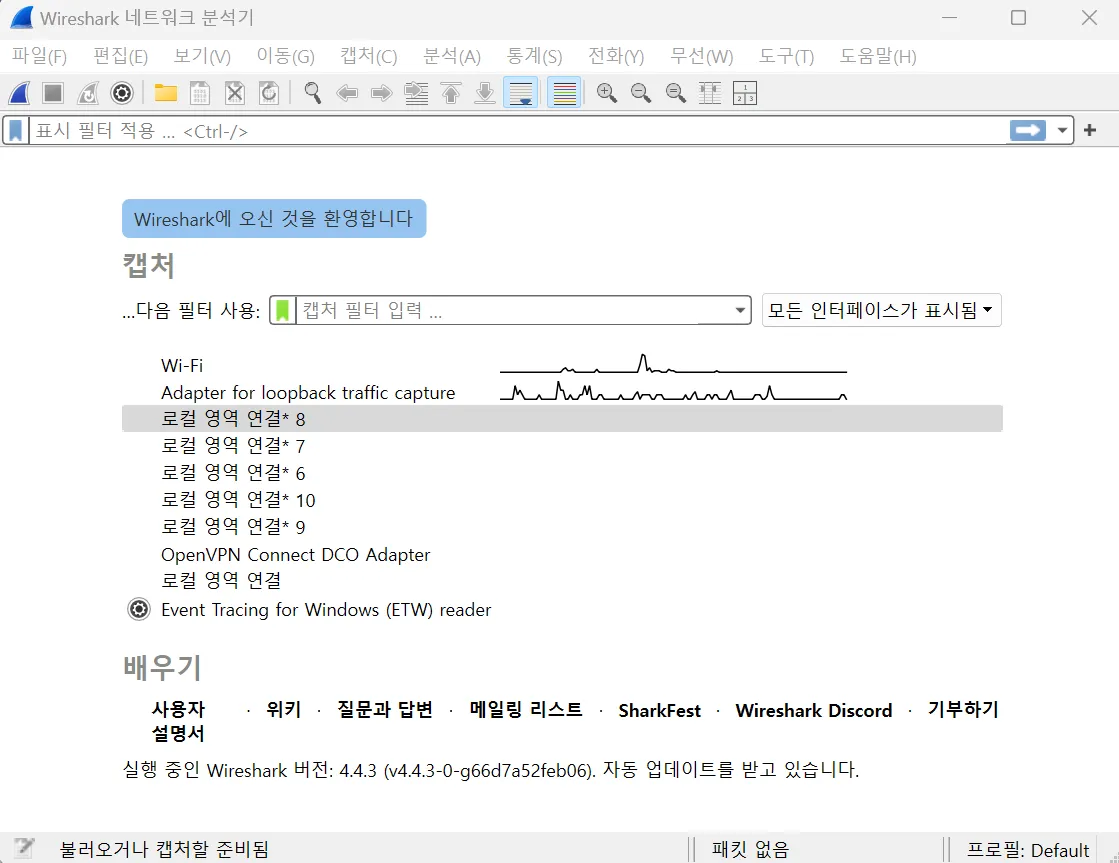
와이어샤크를 설치했다.

http://gaia.cs.umass.edu/wireshark-labs/INTRO-wireshark-file1.html
위 실습 링크에 접속하는 패킷을 캡쳐하고, 필터에 http를 검색하여 해당 부분을 찾는다.
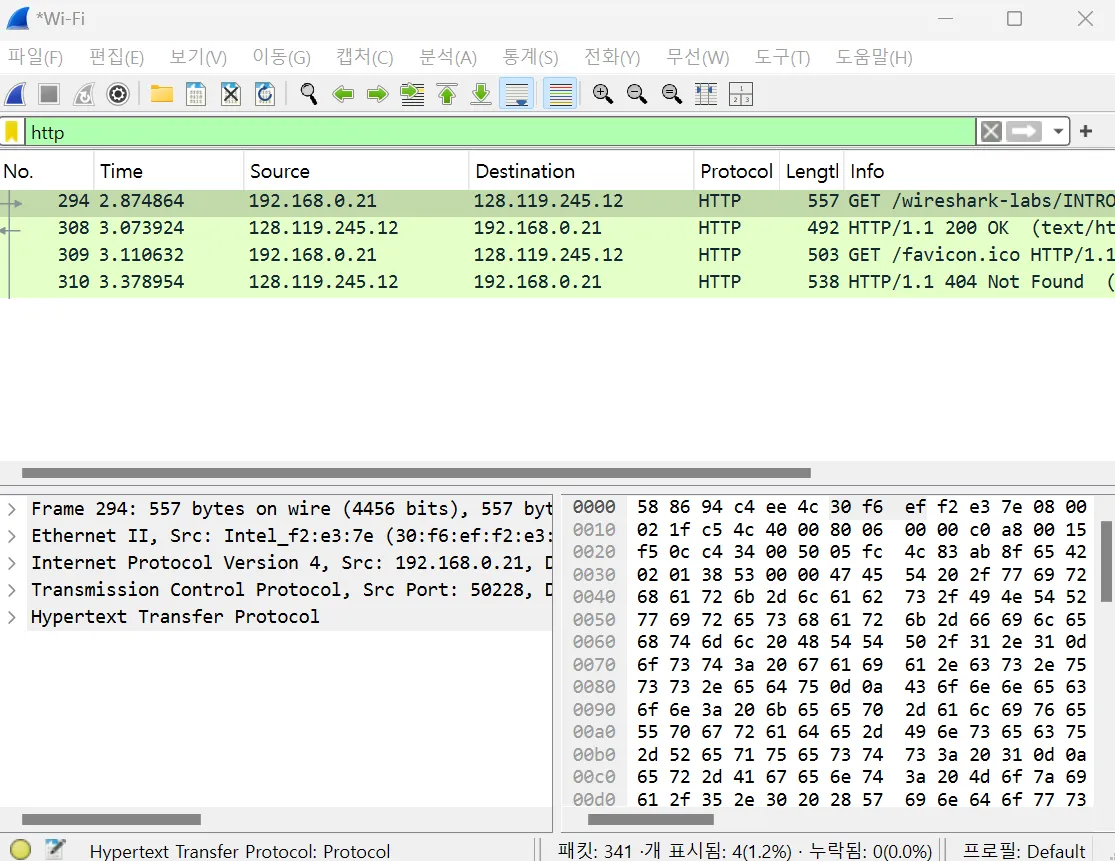
HTTP GET 요청과 HTTP OK 응답 메시지를 확인할 수 있다.
아래는 실습 문제를 진행한 내용이다.
1. Which of the following protocols are shown as appearing (i.e., are listed in the Wireshark “protocol” column) in your trace file: TCP, QUIC, HTTP, DNS, UDP, TLSv1.2?
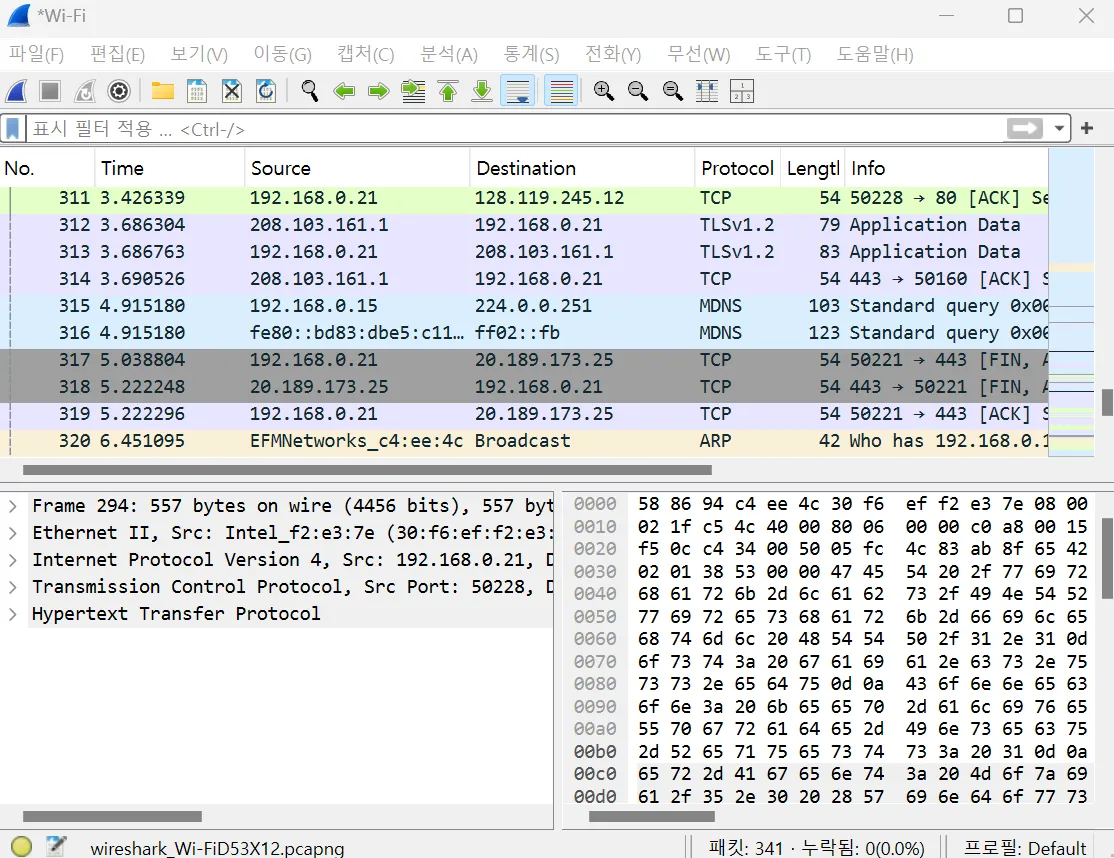
여러 프로토콜을 확인할 수 있었다.
2. How long did it take from when the HTTP GET message was sent until the HTTP OK reply was received? (By default, the value of the Time column in the packet-listing window is the amount of time, in seconds, since Wireshark tracing began. (If you want to display the Time field in time-of-day format, select the Wireshark View pull down menu, then select Time Display Format, then select Time-of-day.)

첫 HTTP GET 요청은 2.87초, 그 이후 HTTP OK 응답은 3.07초가 소요됐다. GET에서 OK까지 약 0.2초가 소요됐다.
3. What is the Internet address of the gaia.cs.umass.edu (also known as www-net.cs.umass.edu)? What is the Internet address of your computer or (if you are using the trace file) the computer that sent the HTTP GET message?
http://gaia.cs.umass.edu/의 ip 주소는 GET 요청의 목적지인 128.119.245.12, 이 요청을 보낸 컴퓨터의 ip 주소는 192.168.0.21이다.
4. Expand the information on the HTTP message in the Wireshark “Details of selected packet” window (see Figure 3 above) so you can see the fields in the HTTP GET request message. What type of Web browser issued the HTTP request? The answer is shown at the right end of the information following the “User-Agent:” field in the expanded HTTP message display. [This field value in the HTTP message is how a web server learns what type of browser you are using.]
Hypertext Transfer Protocol의 User-Agent에서 브라우저 정보를 찾을 수 있다.
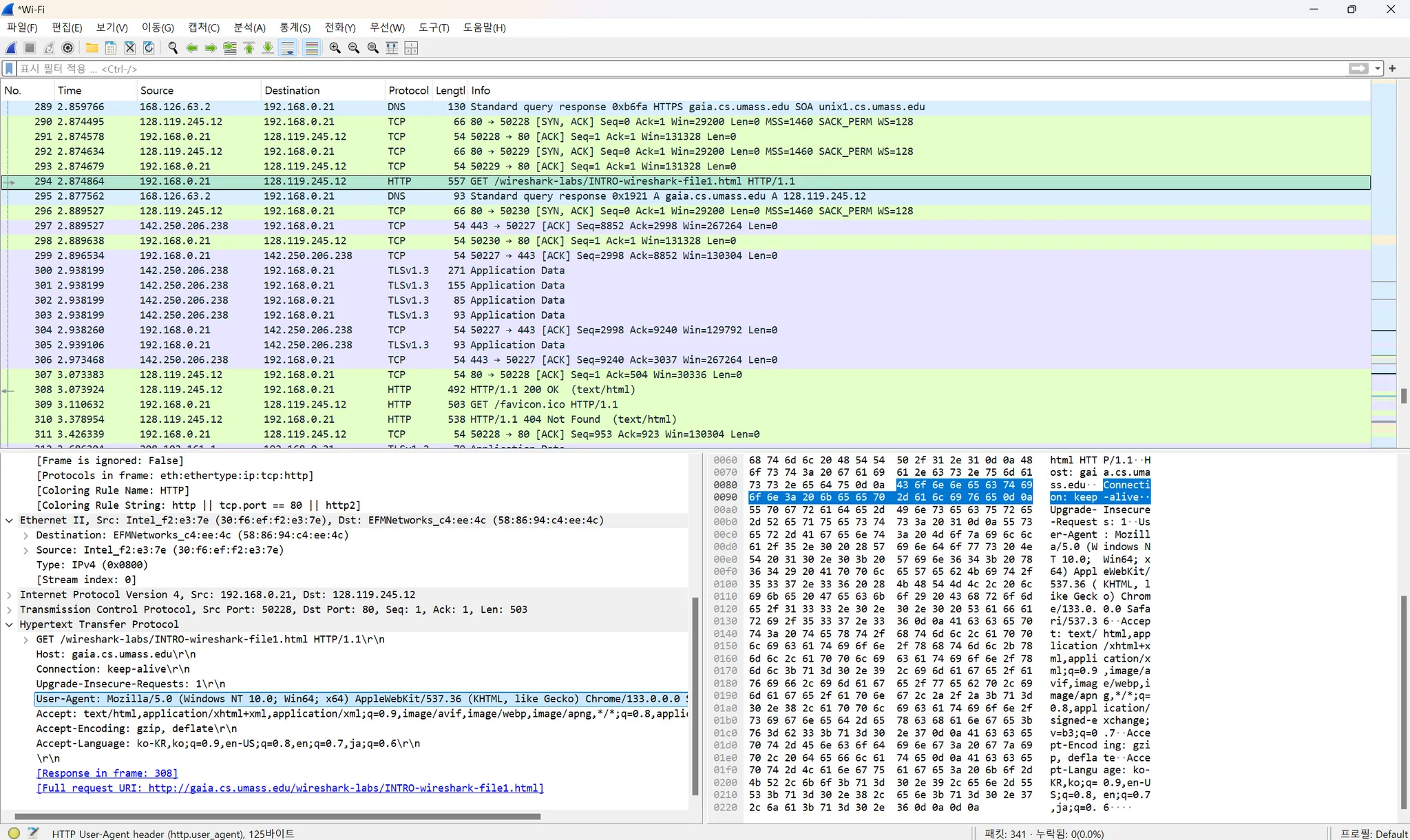
5. Expand the information on the Transmission Control Protocol for this packet in the Wireshark “Details of selected packet” window (see Figure 3 in the lab writeup) so you can see the fields in the TCP segment carrying the HTTP message. What is the destination port number (the number following “Dest Port:” for the TCP segment containing the HTTP request) to which this HTTP request is being sent?
TCP 프로토콜 패킷의 세부사항에서 목적지 포트를 확인할 수 있다.
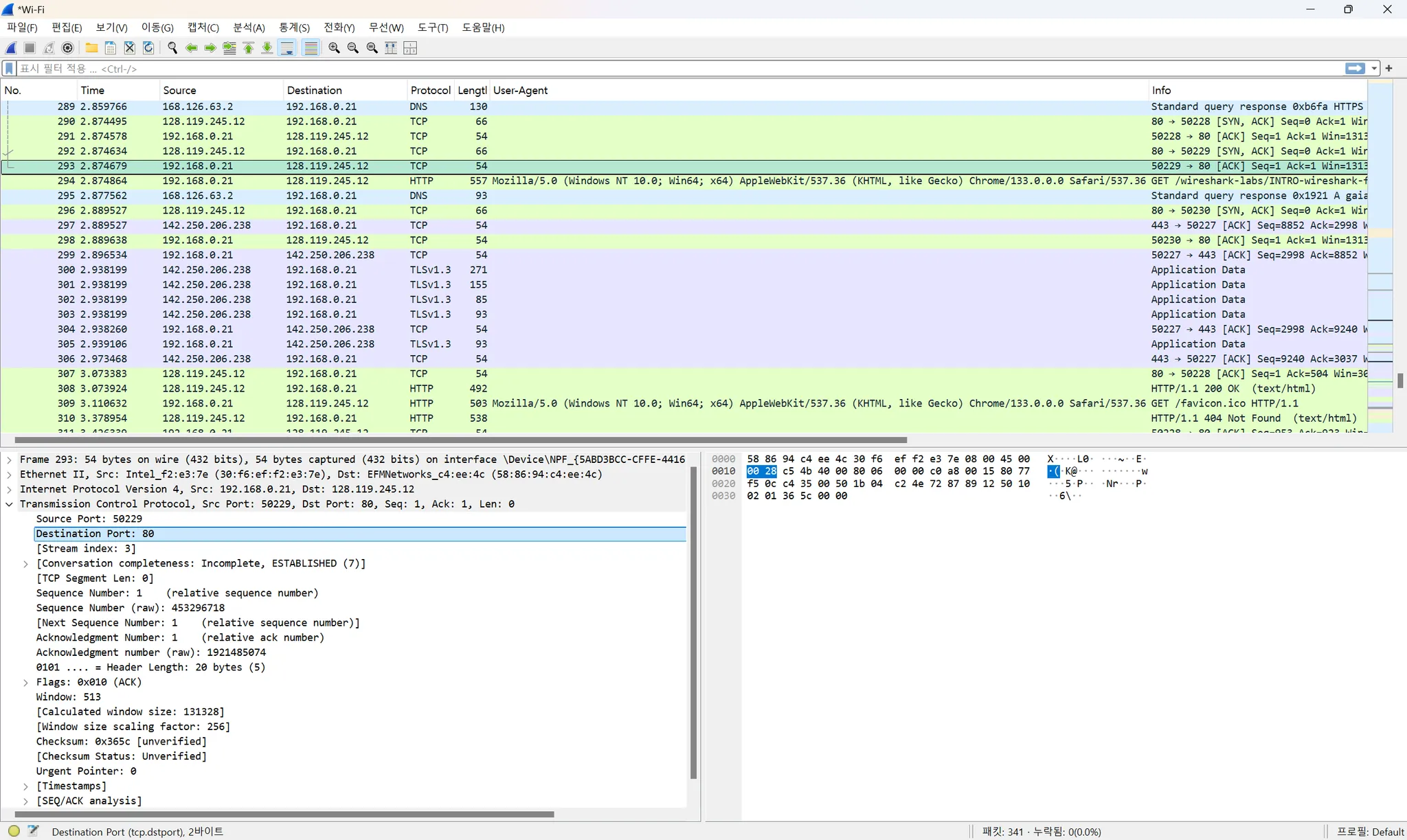
6. Print the two HTTP messages (GET and OK) referred to in question 2 above. To do so, select Print from the Wireshark File command menu, and select the “Selected Packet Only” and “Print as displayed” radial buttons, and then click OK.
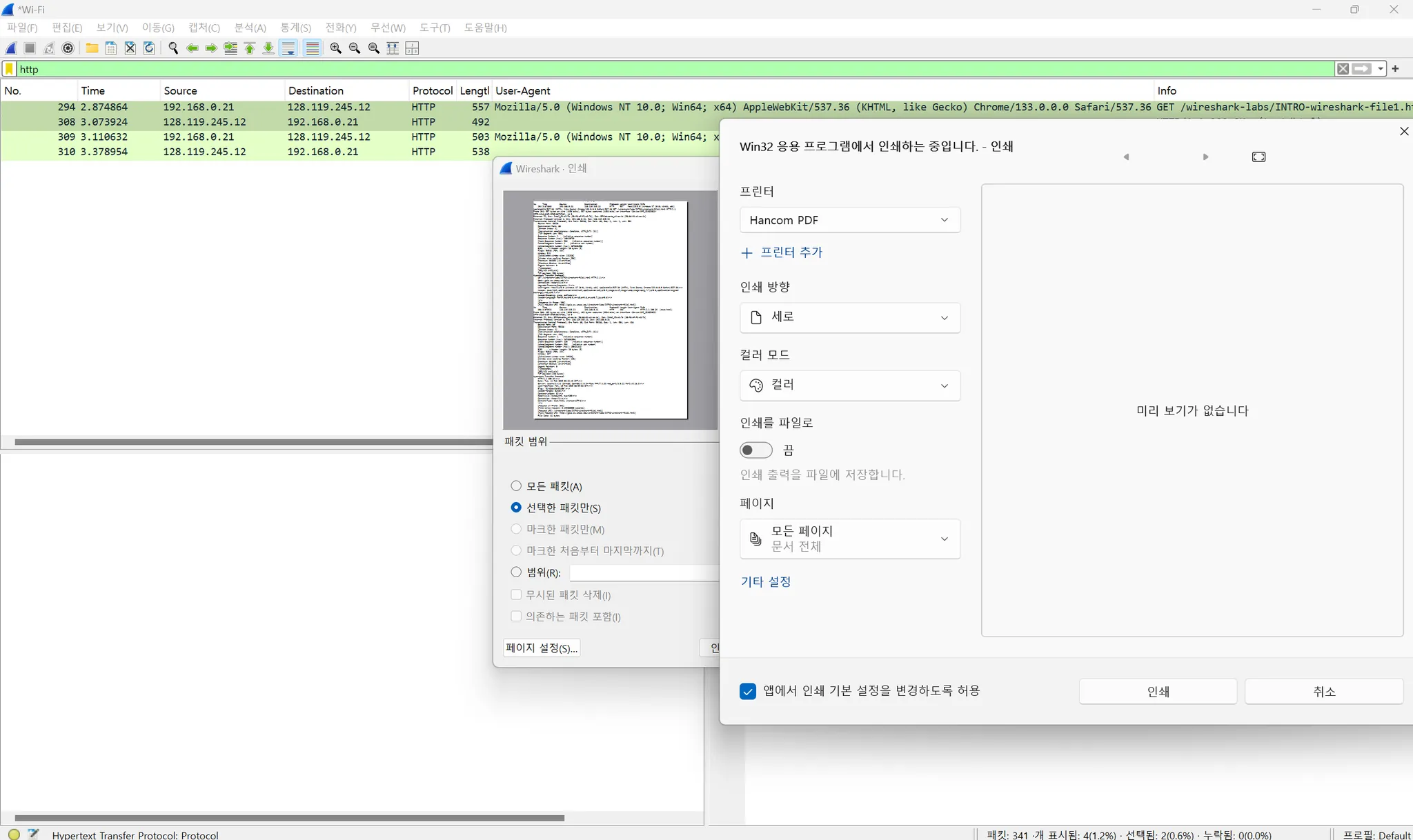
이와 같은 방법으로 인쇄할 수 있는데, 직접 하진 않았다.
여기까지 Getting Started였고, 자격증 시험이 끝나야 업로드 주기가 정상화되지 않을까 싶다.
'네트워크' 카테고리의 다른 글
| CHAPTER 09 멀티미디어 네트워킹 (1) | 2025.05.08 |
|---|---|
| CHAPTER 08 컴퓨터 네트워크 보안 (0) | 2025.04.29 |
| CHAPTER 07 무선 이동 네트워크 (1) | 2025.04.12 |
| CHAPTER 06 링크 계층, 링크, 접속망, 랜 (0) | 2025.03.28 |
| CHAPTER 05 네트워크 계층: 제어 평면 (1) | 2025.03.24 |